
FREE MIDI TO AUDIO PLUGIN · MAC BETA
VST3 / AU / STANDALONETurn MIDI into
instrument audio.
The notes are yours. Find their sound.
Import MIDI, choose an instrument, and drag a rendered take into your DAW.
Internet required. Unsigned beta setup · Rendering & training terms
Hear what your MIDI can become.
Violin · Cello · Double bass
A NEW SOUND, IN YOUR SESSION
Your notes.
Your next take.
- Bring the MIDI. Import a phrase from your DAW.
- Choose the character. Pick an instrument, with an optional reference recording.
- Make it yours. Render, shape with effects, and drag the audio into your session.
Render one phrase at a time using the hosted service. Keep your MIDI to edit the notes and try another take.
How MIDI becomes audio →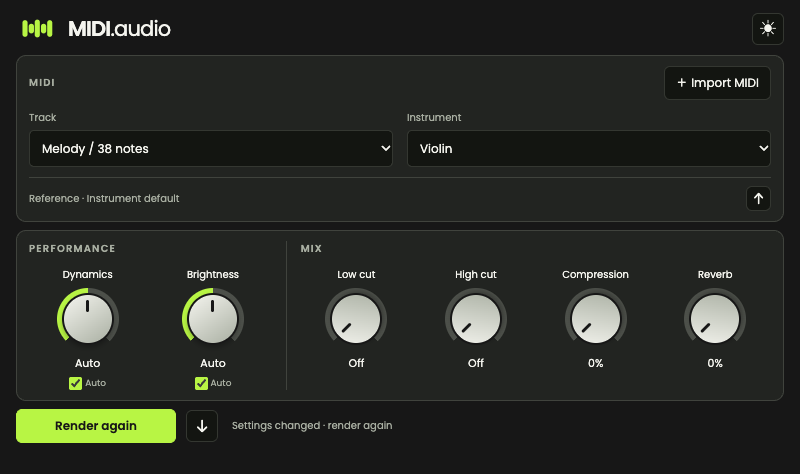
FIND YOUR WORKFLOW
Made for the session
you already have.
REAPER VST3: read your selected track.
Select one MIDI track and a time range, then render directly.
Other DAWs: bring a MIDI file.
Export a MIDI clip or region and import it into MIDI.audio. Use AU in Logic Pro or VST3 in a compatible host. Automatic selected-track reading is specific to REAPER VST3.
Find your DAW’s setup and testing status →FREE BETA · NO ACCOUNT REQUIRED
Give your next
phrase a new voice.
Download free for Mac Apple Silicon · macOS 13+ · Internet for rendering
Includes VST3, Audio Unit and standalone app.
Submitted MIDI and reference audio may be used to improve the models. Read how your music is used.
A few steps for the Mac beta.
This beta is ad-hoc signed, without Developer ID signing or notarization. If macOS blocks the downloaded installer, remove this package’s quarantine flag in Terminal:
xattr -d com.apple.quarantine ~/Downloads/midi-audio-macos-arm64.pkg- Open the .pkg, review the terms and follow the installer.
- If macOS still blocks it, use System Settings → Privacy & Security → Open Anyway.
- Restart your DAW and load MIDI.audio.
BEFORE YOUR FIRST TAKE
Good to know.
Everything you need to decide
if the beta fits your workflow.
What does MIDI.audio do?
MIDI.audio turns a written MIDI phrase into an instrument audio take using hosted rendering. Import a MIDI file, choose an instrument, render, then drag the audio into your DAW. It is a phrase renderer, so allow time for each take; it is not a live keyboard instrument.
Is MIDI.audio free?
The current beta is free to download and use, with no account or access code required. The installer includes the standalone app, VST3 and Audio Unit. You need an internet connection to render.
Which Macs and DAWs can I use?
The beta requires an Apple Silicon Mac running macOS 13 or later. Logic Pro uses Audio Unit; hosts that support VST3 can load the VST3 plugin. REAPER VST3 can read a selected MIDI track directly. Other hosts use exported MIDI files. Windows, Linux and Intel Macs are not supported by this build.See DAW setup and testing status →
Which instruments can I render?
Choose violin, cello, double bass, flute, clarinet, saxophone, French horn, trombone, trumpet, piano, acoustic guitar, electric guitar or clean electric guitar. Listen to violin, flute, trumpet and acoustic guitar examples above.
Can I use the rendered audio commercially?
Yes. The current terms allow commercial use of rendered music. You must own or have permission to provide your MIDI and any reference audio for rendering and model training. Third-party rights in your inputs still apply.
What happens to my MIDI and reference audio?
Pressing Render uploads the chosen MIDI, instrument, settings and any reference audio to the hosted service. Submitted MIDI, instrument choices and reference audio are retained and may be used to train, evaluate and improve the models. Opening the plugin or selecting a file does not upload it.Read the data and removal details →
Why does macOS show an installation warning?
The beta is ad-hoc signed and is not Developer ID signed or notarized. macOS may block the installer. The setup guide explains how to check the download and approve this package. Restart or rescan your DAW after installation.Follow the installation guide →
Something off? A sound you’re missing?
Tell us on GitHub